Trip.com Baggage Allowance Guide: Check & Add Bags

By Riley H.
November 18, 2024
Many travelers will have more than one bags or larger size needed to check-in ahead of boarding, especially travelers going to abroad. So, it's important to check whether the baggage allowance meets your needs. Here, Trip.com offers you a guide to check how much baggage your flight is included and how to add extra earlier to save your time and money!👏
Let's explore how to check and add baggage allowance step-by-step through the Trip.com app. 👀
Step 1: Find Your Upcoming Trips
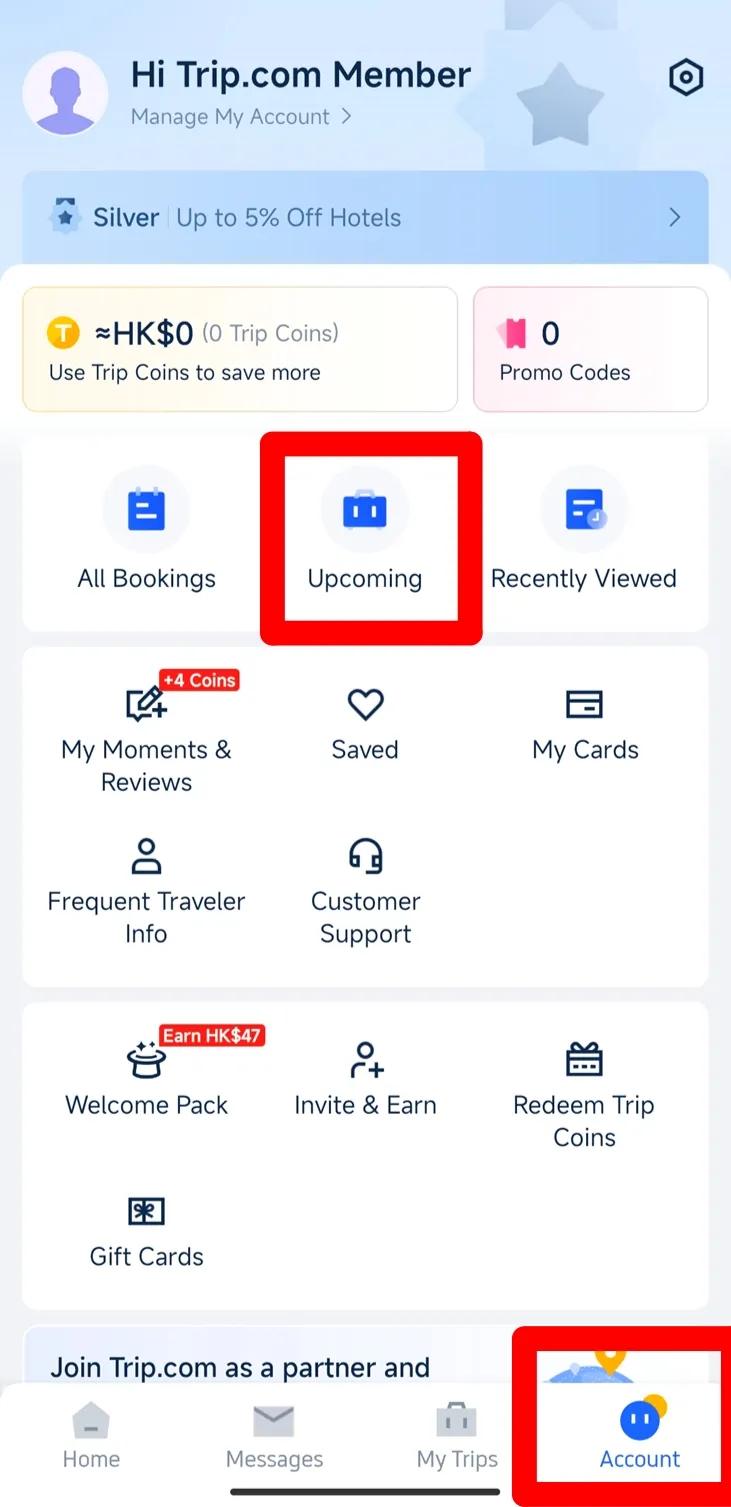
2. Go to Account: At the bottom of the screen, you’ll see an icon labeled Account. Click and go to your account page.
3. Find Bookings: You can see a button in the middle called "Upcoming". Click to see your upcoming trips.
Step 2: Check Your Flight Status
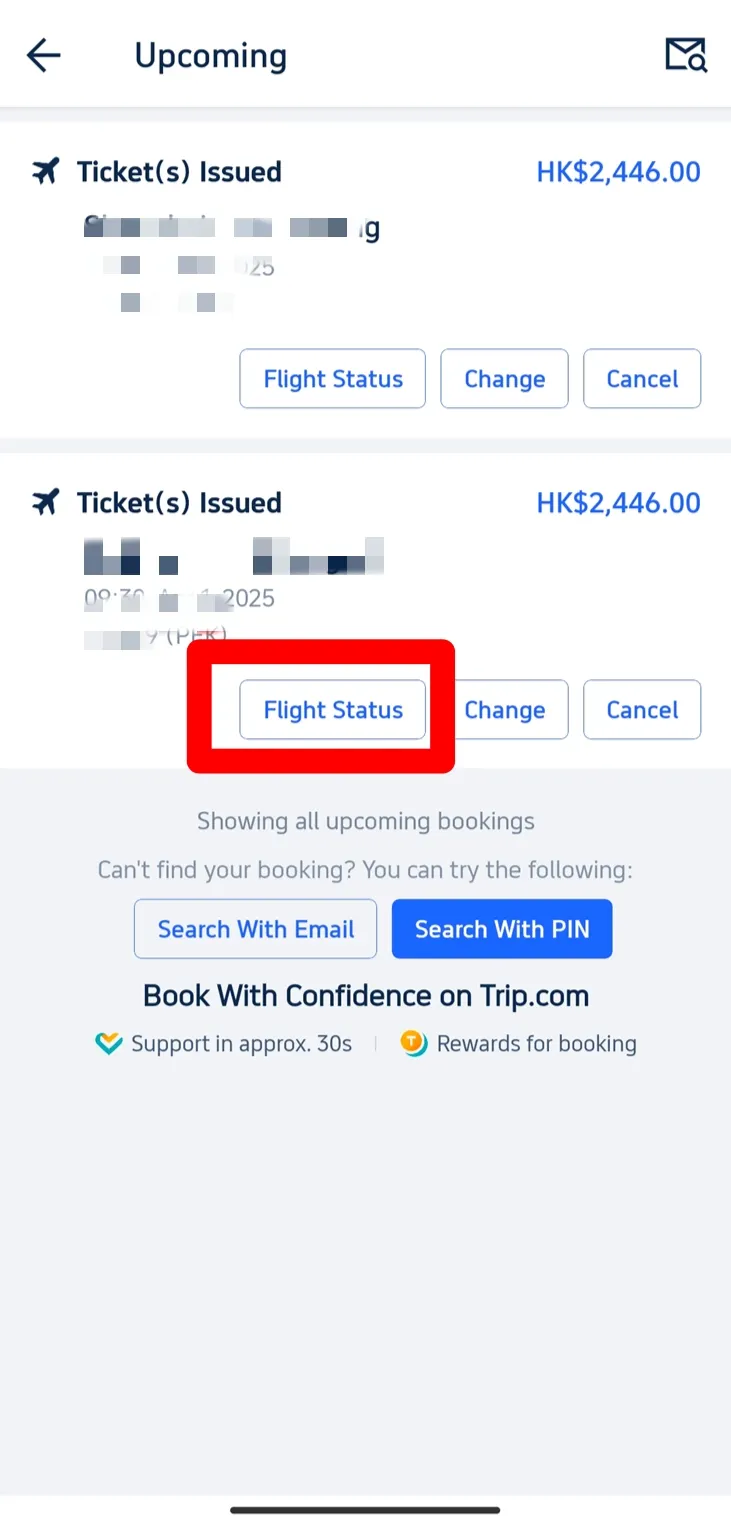
2. Click on "Flight Status": To see more information about your baggage allowance, tap on the Flight Status button.
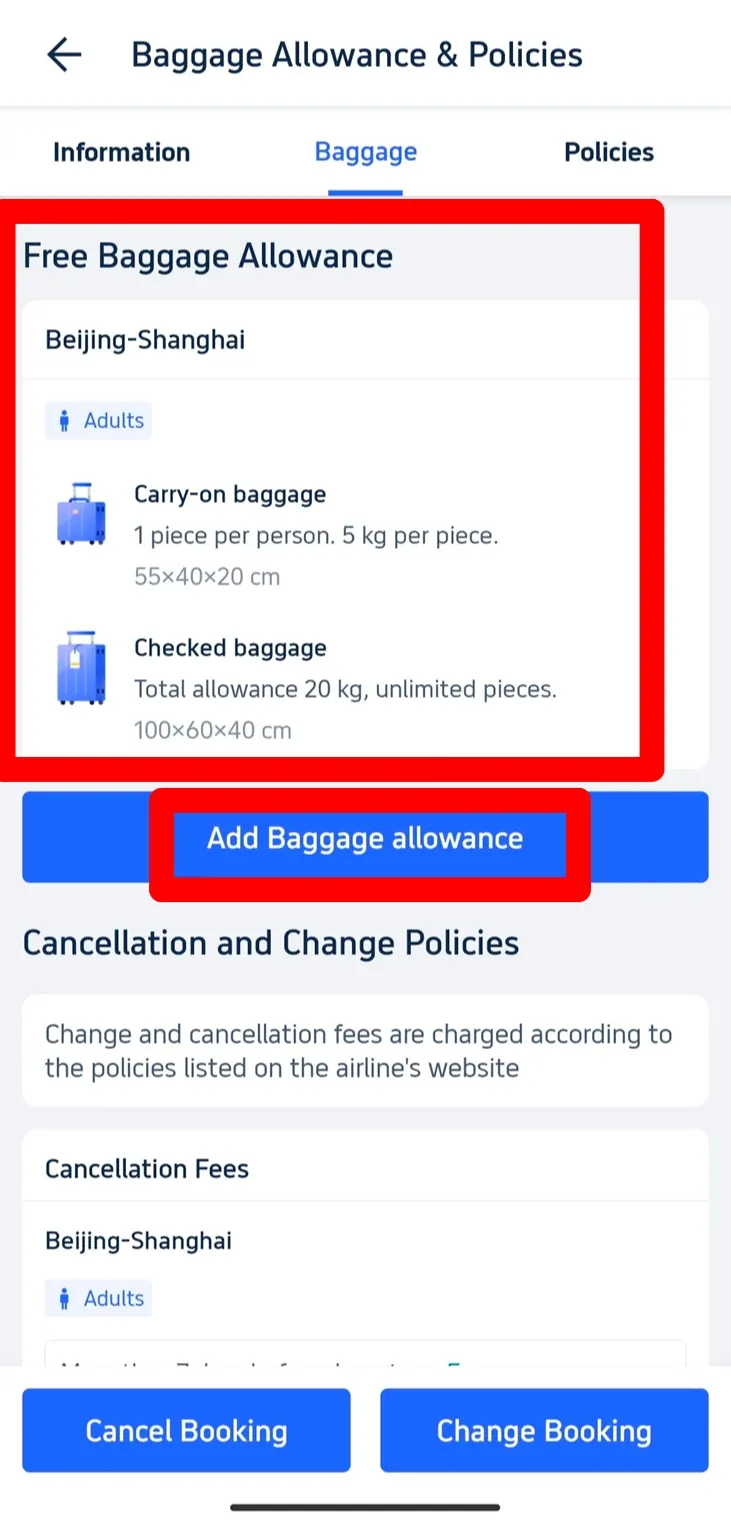
Step 3: Check Your Baggage Allowance
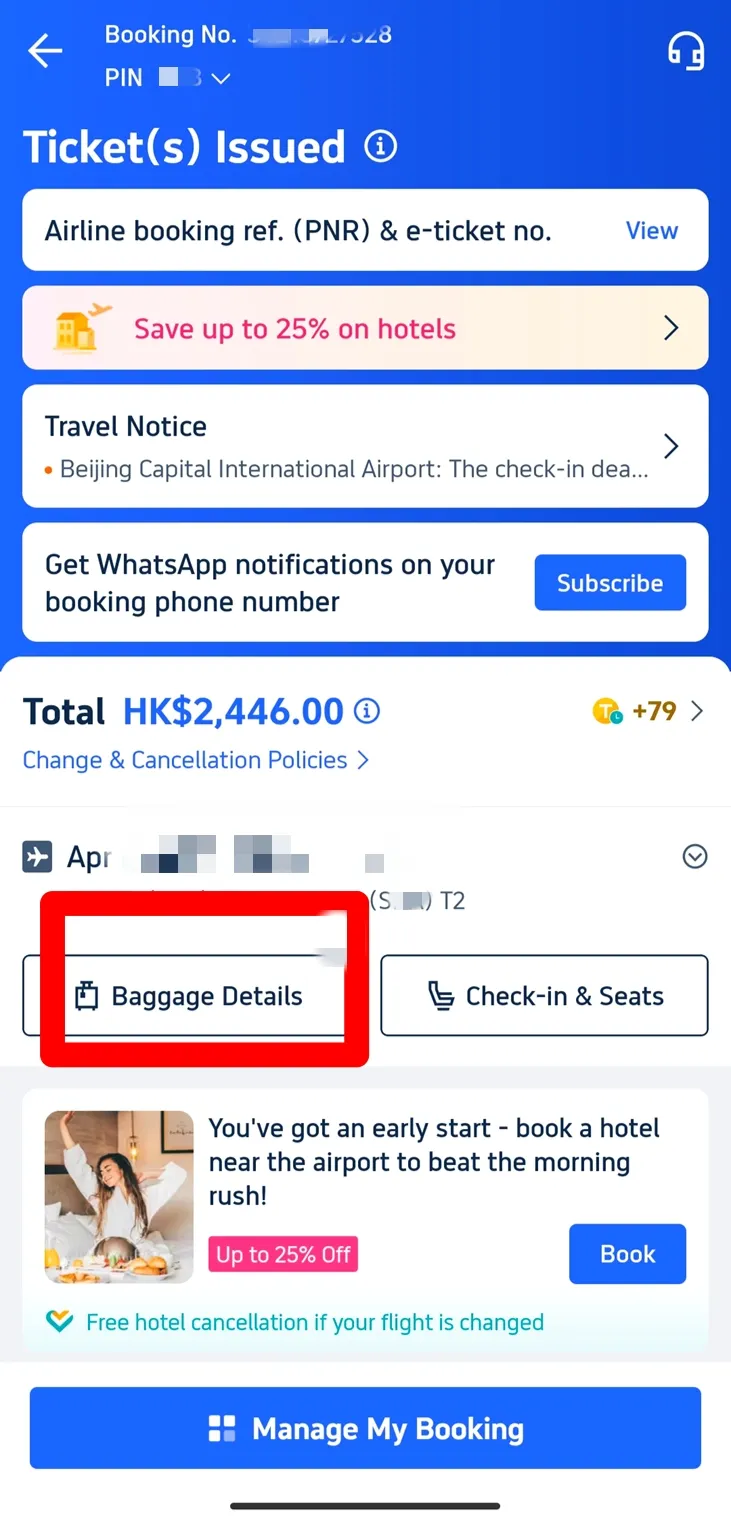
2. Check the Free Baggage Allowance: You will see how much free baggage is included with your ticket on Baggage Details page, which will show both carry-on and checked baggage allowances with the number of bags and the weight limits. For example, it might say that you’re allowed one carry-on bag weighing up to 5 kg and checked baggage up to 20 kg.
Step 4: Add Extra Baggage Allowance
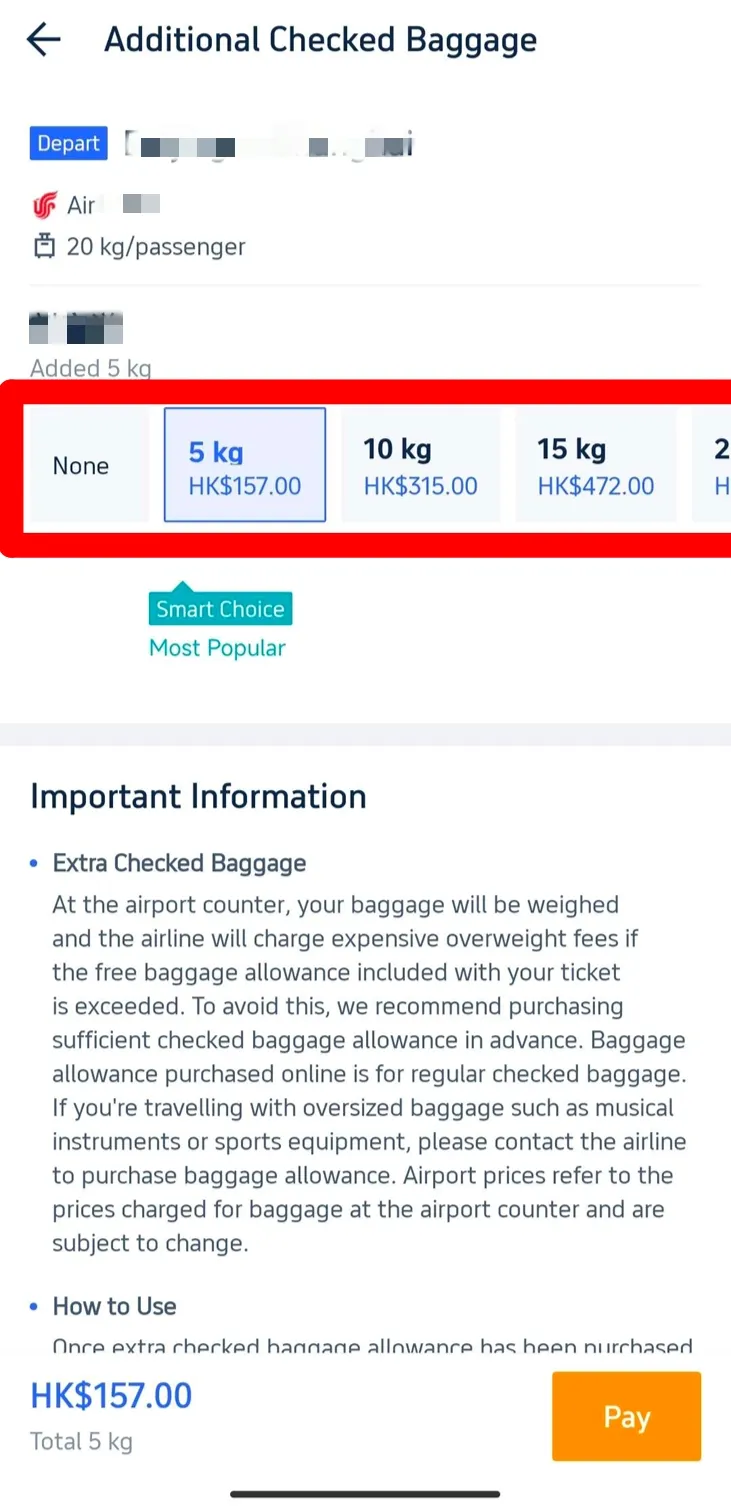
Step 5: Select Baggage Allowance From Multiple Options
2. Smart Choice Option: Trip.com app provide a “Smart Choice” option, which is a popular baggage allowance choice that other travelers always select.
Tips about Baggage Allowance
Avoid Extra Fees
Special Baggage
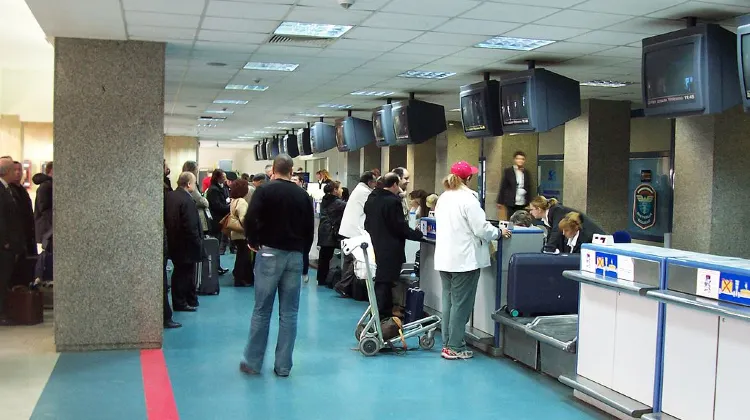
Luggage is weighed as passengers check in at the airport. (from Wikipedia)
Start Your Travel with Trip.com!

Trip.com is an international online travel agency that offers 24/7 customer service in multiple languages. It offers easy booking services for flights, hotels, and tours and activities. As Platimum & Diamond Members of Trip.com, you can access a free airport lounge, earn more Trip coins, save more on hotel booking, etc.
Explore More
Trending
-
Air travel guide
-
Latest flight deals
-
Getting around
-
eSIM/SIM card
- eSIM Japan
- Canada eSIM
- eSIM UK
- China SIM Card
- eSIM Philippines
- Link Ticket to Shanghai Disney App
- All Inclusive Resorts Puerto Rico
- Flexible Flight
- Murrieta Hot Springs
- Bali Maps
- Universal Studios Japan Rides
- Songkran Festival Thailand
- Where to Stay in Toronto First Time
- Guangzhou Attractions
- SHIBUYA SKY Ticket