Trip.com Flight Change: How to Quick Change

By Trip.com
April 25, 2026

Plans don't always go as expected, and you might need to adjust your flights sometimes.
Luckily, changing your flights on Trip.com is simple. Here's how to adjust your travel plans.👇👇👇
To Shanghai
To Bangkok
To Tokyo
See all flights


How to Change a Flight on Trip.com App?
Download Trip.com app first before you change your flight schedule.
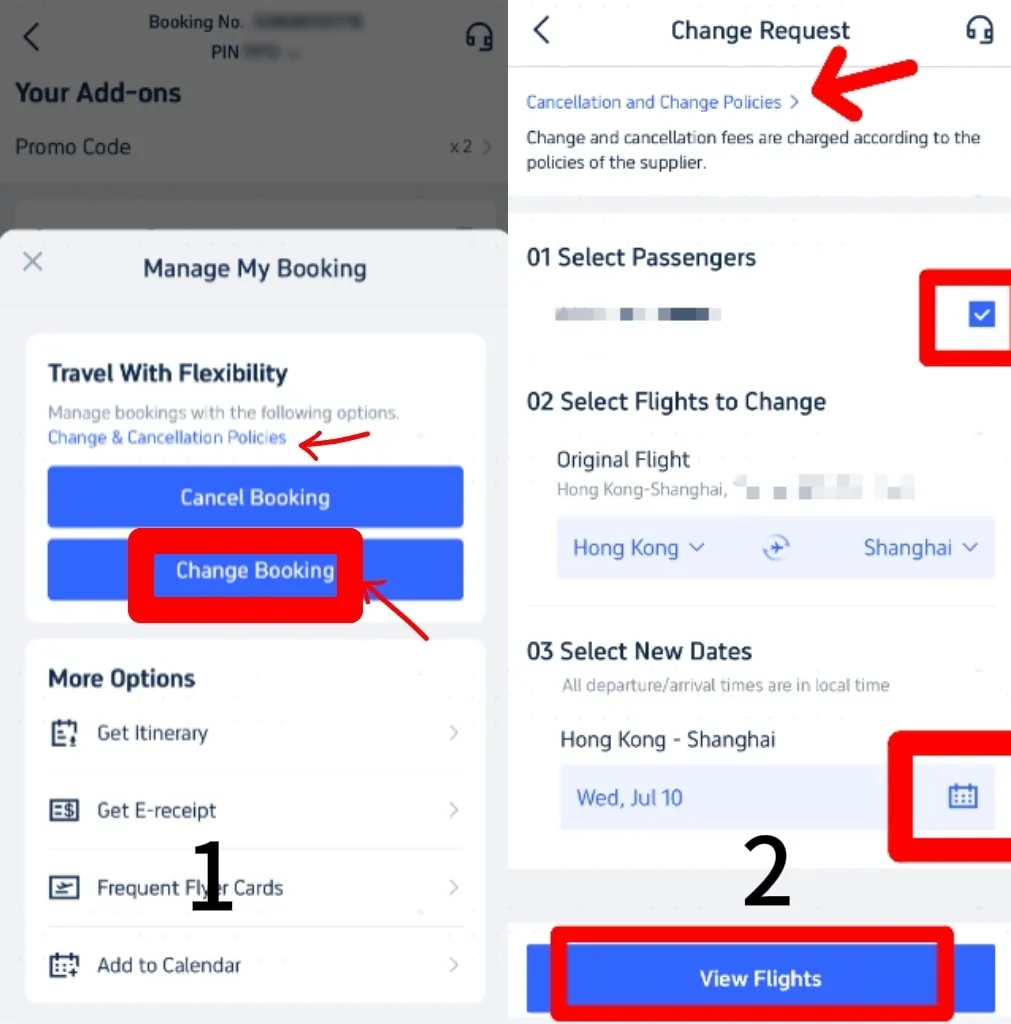
Step 1: Find Your Booked Flight
- Open the Trip.com app and go to 'Manage My Booking' to see your flights.
Step 2: Change the Booking
- Check the change and cancellation policies for your flights.
- Choose 'Change Booking' to go to the change request page, where you can review the policies again.
Step 3: Select Passengers & Flight Dates
- Select the passengers whose flights need to be changed.
- Double-check that you are changing the correct flight, then pick new travel dates using the calendar.
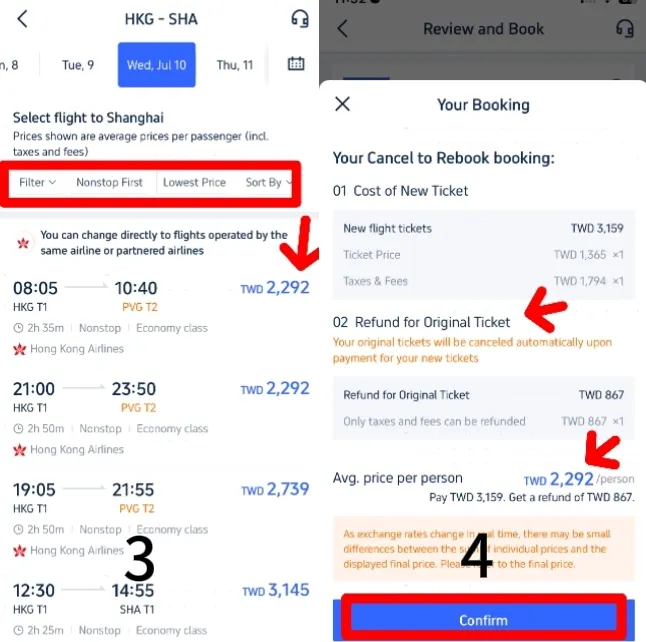
Step 4: Select New Flights You Want
- After choosing new dates, click 'Find Flights' to see what's available.
- Use filters like 'Non-stop' or 'Lowest Price' to find the perfect flight. Make sure the new flight is with the same airline or one of their partners.
Step 5: Confirm the Booking
- Once you have picked your new flight, review the details of your updated booking.
- See how much of a refund you will get for your original ticket, and compare that to the cost of the new one. The final price will be adjusted based on this.
Step 6: Complete the Payment
- If the price of the new flight is acceptable to you, confirm your selection and pay.
- After you pay, you will get a confirmation of your updated booking. Make sure all the details are right.
How to Change a Flight on Trip.com Website?
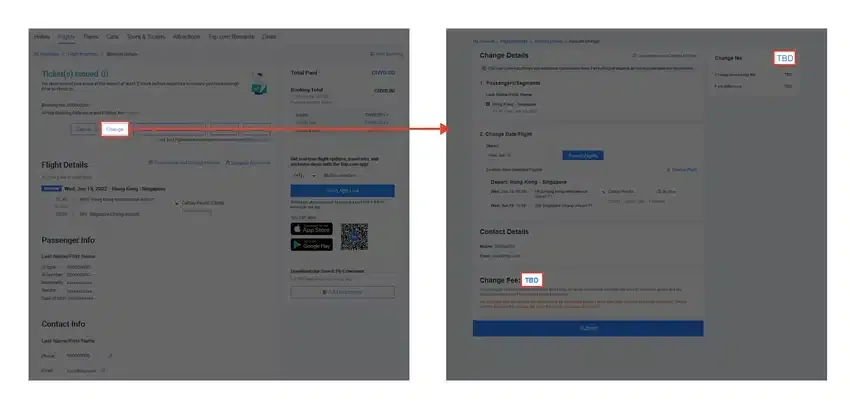
Source from theflightexpert
Step 1: Access Your Booking
- Go to your bookings on the Trip.com website and find the one you need to change.
Step 2: Initiate the Change
- Click on “Change.” Then in section 2 that is labeled “Change Date/ Flight,” to start searching for new flights. Refer to the screenshot provided for guidance
Step 3: Select Your New Flight
- Pick your new flights based on what is available and what you prefer. Follow the instructions on the screen to make the change.
Step 4: Review and Confirm Change Fees
- Once you have selected your new flights, review the details of your updated booking, including any potential fare differences or fees.
How to Book Flights on Trip.com?
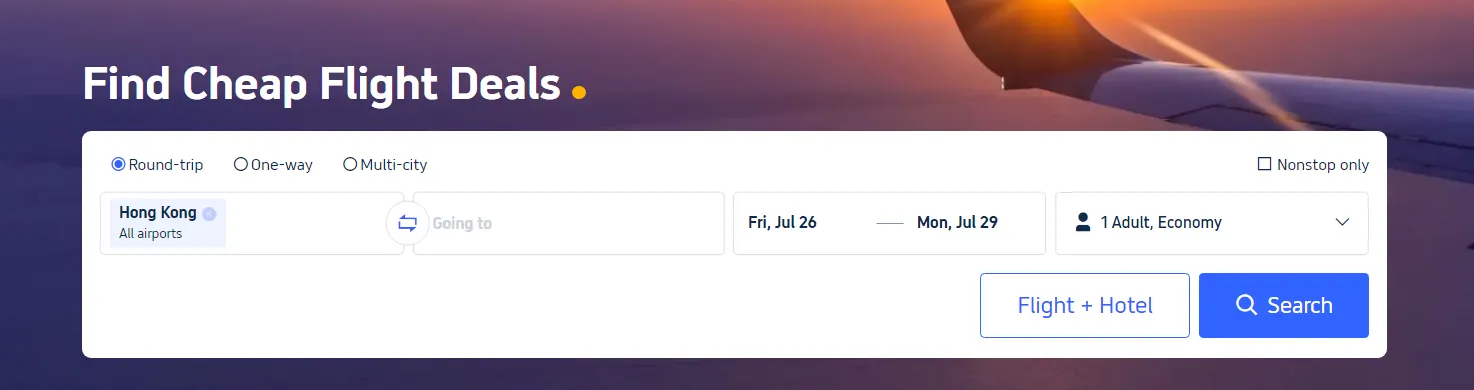
Step 1: Download the App
First, download the Trip.com application from the App Store or Google Play Store. The app often has exclusive deals and discounts that are not available on the website.
Step 2: Sign Up and Log In
Create an account or log in to your existing Trip.com account to access member-only deals and earn Trip Coins with the bookings you make.
Step 3: Search for Flights
Enter your travel details, such as departure city, destination, travel dates, and the number of passengers. Click on ‘Search’ to see available flights.
Step 4: Apply Filters
You can use filters to narrow down your options. For example, you can filter by price, number of stops, airlines, flight duration, and more. This helps you find the best flight that suits your budget and preferences.
Step 5: Sort by Price
Sort the search results by price to view the cheapest options first. You can also view flights in a calendar view to see which days offer the lowest fares.
Step 6: Check for Deals and Discounts
Look for special deals and discounts. Trip.com often runs promotions and offers exclusive flight discounts on certain routes or airlines.
Step 7: Set Fare Alerts
If it is easy to change your travel dates, set fare alerts for your desired route. Trip.com will notify you when the price drops, allowing you to book at the best price.
Check Out Top Hotel Picks
Hotels in Shanghai
Hotels in Bangkok
Hotels in Tokyo
See All Hotels
 NO.1
NO.1









FAQs about Trip.com Flight Change
-
What is the procedure for requesting a flight change through Trip.com app?
-
Is it possible to change only specific passengers on a multi-person flight reservation?
-
Can I choose a different airline when I am attempting to change my existing flight booking?
-
Will I be required to pay a fee when I change my travel dates?
-
How can I find the most affordable alternative flights when making a change to my itinerary?
Disclaimer: This article has been provided by an individual contributor or third party platform. If there is any discrepancy regarding the copyright, please contact us directly and we will delete the content immediately.
Trending Searches
-
Air travel guide
-
Latest flight deals
-
Getting around
-
eSIM/SIM card
- eSIM
- eSIM UK
- eSIM Hong Kong
- eSIM South Korea
- China eSIM with VPN
- US Customs Prohibited Items
- Thailand Tax Refund
- Do Flight Prices Go Up the More You Search
- China Ski Resorts
- Mountain Creek Ski Resort
- Toy Story Hotel Shanghai
- Canton Fair Hotel
- Extended Stay Hotel
- Universal Studios Singapore
- China Holidays