Does Trip.com Charge a Change Fee?

Author's Profile Picture
Trip.com Change Fee and Fare Difference

Trip.com doesn't decide how much airlines or hotels charge for booking changes. If you change a flight, the final cost may include an airline change fee, the difference between your original fare and the new ticket price, and sometimes a separate Trip.com service fee if the change needs to be handled manually. These charges come from different sources, so it's worth checking each one before confirming your change.

to Vegas
to Chicago
to Orlando
to Miami
to Tokyo
See all flights

What Trip.com Change Fee Usually Means

Three line items can appear on a change, and they are not interchangeable:

Charge

Who sets it

Typical US amount

Airline change fee

The airline

Often US$0 on main cabin; US$50–100+ on ultra-low-cost carriers

Fare difference

The airline

Whatever the new ticket costs minus what you paid

Trip.com service fee

Trip.com

Around US$5–20, only when a manual change is required

Trip.com only charges the service fee listed above. Any airline change fee comes from the airline, while the fare difference depends on the price of the new ticket. These two costs are separate from Trip.com's own fees.

Can You Change Bookings on Trip.com?

Can You Change Bookings on Trip.com?

Trip.com helps arrange travel bookings, but changes are generally subject to the policies of the airline, hotel, railway operator, or car rental company. What you can change, how much it costs, and when you need to submit your request will depend on the supplier and the type of booking.

Flights ✈️

You can usually request changes to your flight dates, departure times, or routes through Trip.com Flights, subject to the airline's fare rules.

  • Change fees: Some airlines charge a fee for changing a ticket. The amount depends on the airline and fare type.
  • Fare difference: If your new flight costs more than your original ticket, you'll generally need to pay the difference.
  • Low-cost airlines: Some low-cost carriers require passengers to manage changes through their own websites or customer service channels.

Hotels 🏨

Hotel changes depend on the property's booking and cancellation policy. If you need different dates or a different room, you may be able to modify your reservation through Trip.com Hotels. Another option is to cancel and rebook, provided your original reservation allows free cancellation.

  • Free cancellation rates: You can usually cancel without a penalty before the deadline shown in your booking conditions. This is often 24 or 48 hours before check-in, but the deadline varies.
  • Non-refundable rates: These bookings generally don't allow free cancellations. Changes may also be restricted or subject to additional charges, depending on the property's policy.

Trains 🚆

Train ticket changes are governed by the railway operator's rules, which can vary by country, route, and ticket type. You can check available options through Trip.com Trains.

  • Change deadlines: Some operators require changes to be made a certain amount of time before departure.
  • Date and time changes: Depending on the operator, you may be able to change your travel date or departure time. Some tickets cannot be modified once issued.

Please note: Change eligibility, fees, and deadlines are determined by the relevant travel supplier and may vary by booking. Trip.com helps process change requests but cannot override the supplier's policies.

🎁 Book Cheapest Flights Worldwide | Search Best Hotels | Get fast & reliable eSIM.

How to Change & Reschedule Flights on Trip.com

How to Change & Reschedule Flights on Trip.com

How to Change & Reschedule Flights on Trip.com

How to Change & Reschedule Flights on Trip.com

Follow these steps in the Trip.com mobile app to request a flight change.

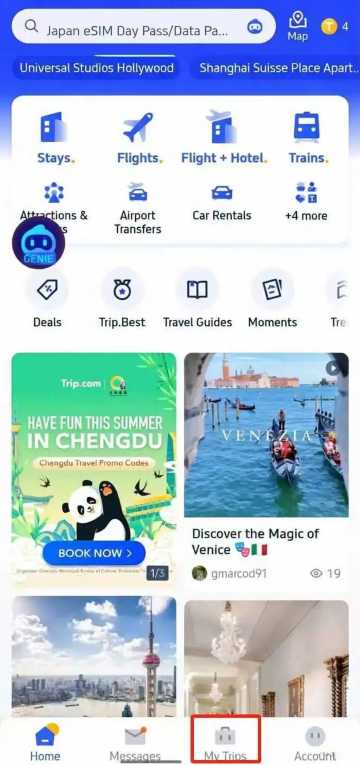
Step 1: Find Your Booking

  • Open the Trip.com app and sign in to your account.
  • Go to My Trips to see your upcoming and previous bookings.
  • Select the flight you want to change.

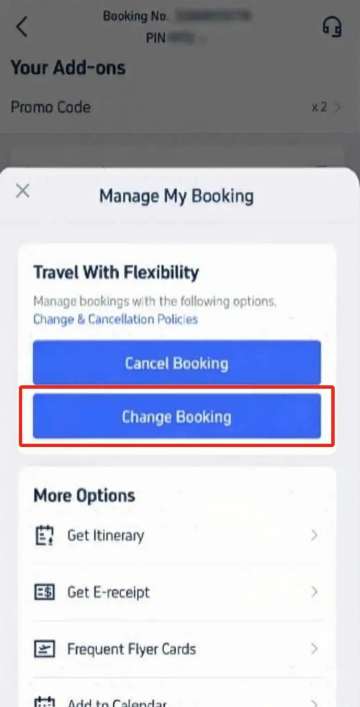
Step 2: Check the Change Policy

  • On the booking details page, select Manage My Booking.
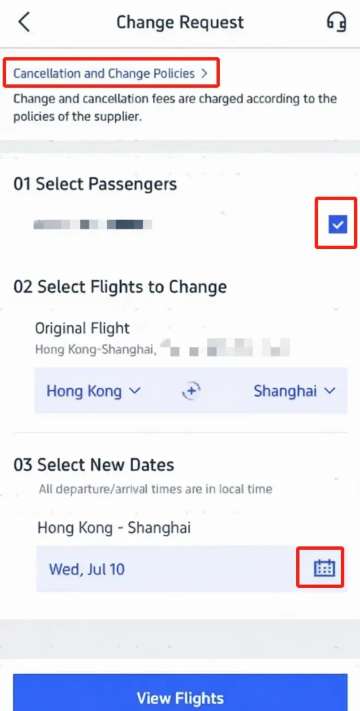
  • Open Cancellation & Change Policies to check the applicable fees, fare conditions, and change deadlines before proceeding.

Step 3: Submit Your Change Request

  • Return to Manage My Booking and select Change Booking to start your request.
  • Select passengers: Choose the travelers whose flights need to be changed.
  • Confirm your original flight: Check that you've selected the correct flight and route.
  • Choose new travel dates: Use the calendar to select your preferred dates.
  • Select View Flights to browse the available alternatives.
How to Change & Reschedule Flights on Trip.com

Step 4: Select Your New Flight

  • Browse the available flights and use filters such as Non-stop or Lowest Price to narrow down your options.
  • Check the airline, route, departure time, and any other flight details before making your selection. Available alternatives may depend on the original ticket's fare rules.
  • Select your preferred flight and choose the available cabin class, such as Economy or Business.

Step 5: Review and Pay

  • Check the change summary, including any fare difference, applicable change fees, and refund amount, if applicable.
  • If you're happy with the new flight and total cost, select Confirm and complete the payment.
  • Once the change has been processed, check your email for the updated booking confirmation and any refund details.
🎁 Book Cheapest Flights Worldwide & Trip.com Airport Transfer | Search Best Hotels | Get fast & reliable eSIM.

Trip.com Fare Difference: How the New Price Is Calculated

The fare difference is simply what you pay when your new ticket costs more than the original one. For example, say you booked a round-trip main cabin flight from Chicago to Orlando for US$218. You later decide to travel on a different date, but the same route now costs US$264. If the airline doesn't charge a change fee, you'll pay the US$46 difference, along with any applicable Trip.com service fee.

What if the new ticket is cheaper? You won't necessarily get the leftover amount back. Some airlines issue travel credits for the difference, while others don't offer a refund. Check the fare rules before making the change, especially if you're switching to a cheaper flight.

The 24-Hour Rule: Cheapest Window to Change

The US Department of Transportation's 24-hour rule gives passengers a window to cancel their flight and receive a full refund, as long as they booked at least seven days before departure. So, if you spot a cheaper fare or realize you've picked the wrong travel dates shortly after booking, cancelling and booking again may be a better option than paying to change your ticket.

Keep in mind that this rule covers flights to, from, and within the US. If your itinerary doesn't involve the US, the cancellation policy will depend on the airline and the rules that apply to your booking.

Trip.com Change Fee for Hotels

Hotel changes work a little differently from flight changes. Whether you can modify or cancel a reservation without paying extra comes down to the rate you booked and the hotel's policy.

  • Free cancellation rates: You can usually cancel at no cost before the stated deadline, which is often 24–48 hours before check-in. Need different dates? You can cancel the original reservation and book again, provided the new dates are available.
  • Non-refundable or prepaid rates: These are less flexible. Changes or cancellations may not be allowed, or the hotel may charge a fee. It's worth checking the booking conditions, as some properties may make exceptions.

Before cancelling, check the deadline and the price of the new dates. Room rates can change, so rebooking doesn't always mean you'll pay the same amount as before.

How to See Your Trip.com Change Fee Before You Commit

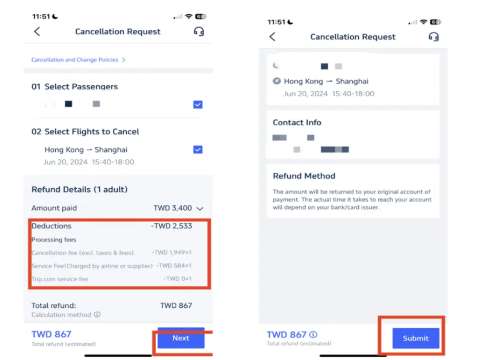
Before making a change, check how much it will cost. In the Trip.com app, open My Trips, select your booking, then go to Manage My Booking → Cancellation & Change Policies. You'll find the relevant fees and conditions there before confirming the change.

If the charges don't look right, save a screenshot of the fee breakdown and booking policy. You can refer to it when contacting Trip.com support to ask about the charges.

New to Trip.com? Grab 8% off your first car rental and hit the road for less - it's a way of saying welcome to Trip.com family! 😘
Car Rentals
Car Rental Promo Code - 8% Off
New User Enjoy up to 8% Off
TRIPCAR8

How to Avoid a Trip.com Change Fee

  • A little planning can make changing your flight less expensive. Keep these points in mind when booking or updating your travel plans:
  • Choose a more flexible fare: If there's a chance your dates will change, a main cabin ticket may be a better choice than Basic Economy. It usually comes with more flexible change options, though the exact rules depend on the airline.
  • Don't wait too long to make changes: Check the airline's policy as soon as you know your plans have changed. Some fares come with tighter change restrictions, particularly close to departure.
  • Ask about fee waivers: If the airline changes your flight schedule or cancels your flight, you may be entitled to a free change or refund. Severe weather and other travel disruptions may also qualify for a waiver.
  • Check for Trip.com promotions: Look out for available discounts or promotions that could help offset some of your travel costs. Check the terms to see which bookings are eligible.

If the Trip.com Change Fee Looks Wrong

If a change fee looks higher than expected, check the breakdown before paying. If something doesn't seem right, reach out to Trip.com through the app under Account → Customer Support, where you can choose Chat With Us or Call Us. Help is available 24/7, and you can also visit the Trip.com Help Center.

Have your booking number and a screenshot of the quoted charges ready when you get in touch. If the fee differs from what you were originally shown, include the original booking conditions so the charges can be checked.

🎁 Book Cheapest Flights & Airport Transfer | Search Hotels Worldwide | Get fast & reliable eSIM.

Trip.com Change Fee FAQs

Disclaimer: This article has been provided by an individual contributor or third party platform. If there is any discrepancy regarding the copyright, please contact us directly and we will delete the content immediately.
Robin

Robin

Trip.com Travel Expert

View profile

Hello! My name is Robin and I am a travel enthusiast who have been all over the world. I've lived in Switzerland, Hong Kong, Taiwan, and I like to move around to experience different cultures and working environment. I mainly create travel contents and give travel insights for travelers so that they can gather the latest updates while having fun traveling. I wish you find my content useful and be able to help in your times of need. Most importantly, have fun and leave no regrets!

68 articles
Travel Insigts Traveling Tips
> >
Trip.com Fee Change and Fare Difference