A Step-by-Step Trip.com Flight Cancellation Guide

By Trip.com
August 27, 2024
Planning a vacation is exciting, but sometimes things don't go as planned, and we need to cancel our flights. If you booked your flight through Trip.com and need to cancel, you might be wondering what their Cancellation Policy is. This article will show you exactly how to cancel your flight booking on Trip.com. Keep reading to learn more!
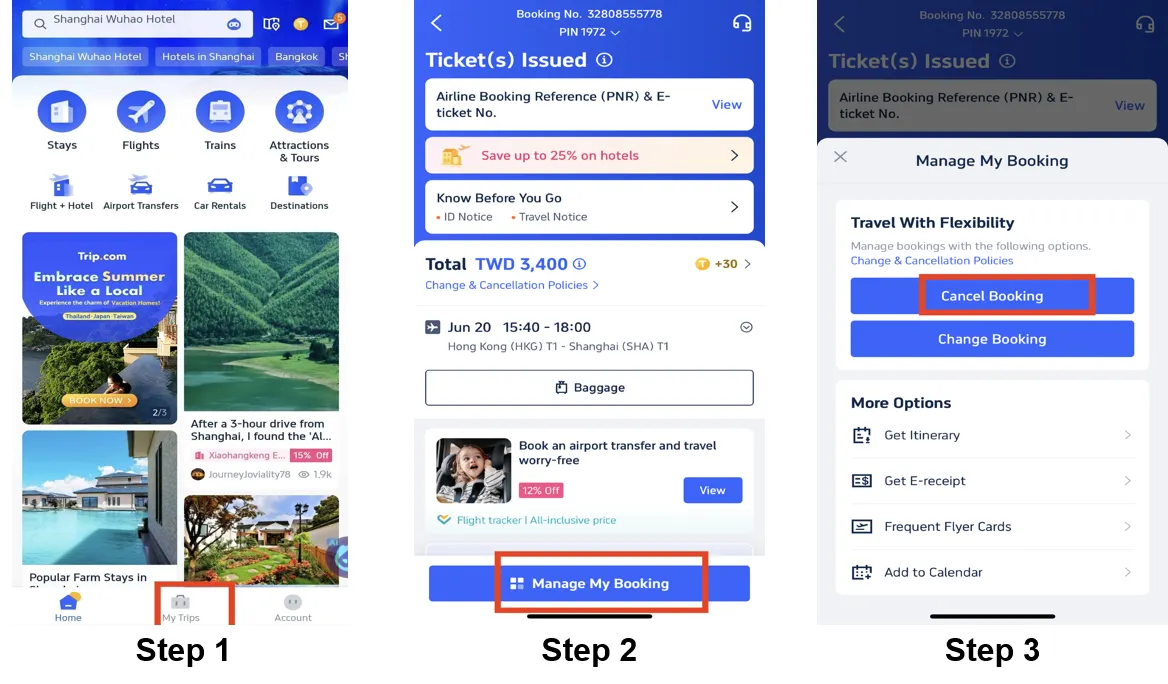
Step 1: Open the Trip.com App to Cancel the Flight
Sign in to your Trip.com account on your phone. Then, go to "My Trips" to see all the trips you've booked.
Step 2: Find the Flight Booking
Tap on "Manage My Booking" to find the flight you want to cancel.
Step 3: Request the Website for Flight Cancellation
Tap the "Cancel Booking" button to cancel your flight. According to its policy, Trip.com charges a service fee and a cancellation fee when you cancel a flight.
Step 4: Confirm Flight Cancellation
Look at how much money you will get back and the fees for canceling your flight. Then, tap "Next" to continue.
Step 5: Complete the Process
Look over the refund details again, and then tap "Submit" to finish canceling your flight.
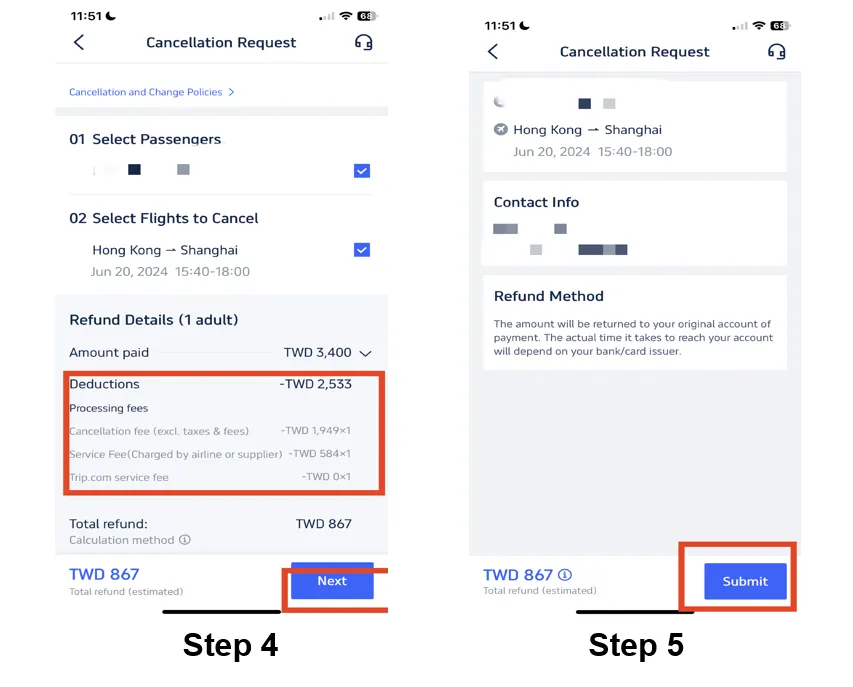
*The screenshots are only for reference.
Trending Searches
-
Air travel guide
-
Latest flight deals
-
Getting around
-
eSIM/SIM card
- eSIM Japan
- eSIM UK
- eSIM Thailand
- eSIM Vietnam
- Italy eSIM
- Frontier Carry on Size
- Flight Cancellation Insurance
- South Korea Public Holidays
- Tokyo Disneyland vs. DisneySea
- Tokyo DisneySea Tickets
- Taos Ski Valley
- Alaska summer
- where to stay in Bangkok
- Magic Kingdom Tickets
- Royal Ontario Museum ticket Minisite