Trip.com Booking Confirmation: How to Access & Manage Your Reservation

Once you've booked a flight, hotel, or travel product on Trip.com, your booking confirmation is the essential document that confirms your reservation and provides all the must-know details for your trip.
Understanding how it works can help you travel stress-free and avoid surprises.
What Is a Trip.com Booking Confirmation?
A Trip.com booking confirmation is an official record of your reservation. It typically includes:
- Confirmation number: Your ID
- Travel details: Names & contact info
- Travel dates & times: Schedule details for flights, hotels, tour tickets, and more.
- Payment details & total cost: The amount you paid and any taxes or fees
- Cancellation & change policies: Terms for changing or canceling your reservation
Why Your Trip.com Booking Confirmation Matters?
Your booking confirmation serves as proof that your reservation is valid. You’ll need it when:
- Checking in at the airport
- Confirming your hotel reservation
- Requesting a refund or making changes
- Contact Trip.com Customer Support
How to Access Your Booking Confirmation on Trip.com?
Option 1: Via email confirmation
Check the inbox you used for your booking! Trip.com sends a detailed confirmation your way the moment your payment is complete, so all your exciting plans are officially locked in.
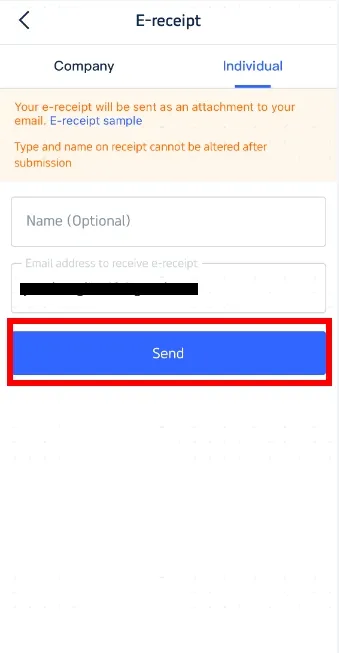
Option 2: Via the Trip.com website
Step 1: Log in to your Trip.com account, head to "My Bookings," and select the flight or hotel reservation you'd like a receipt for.
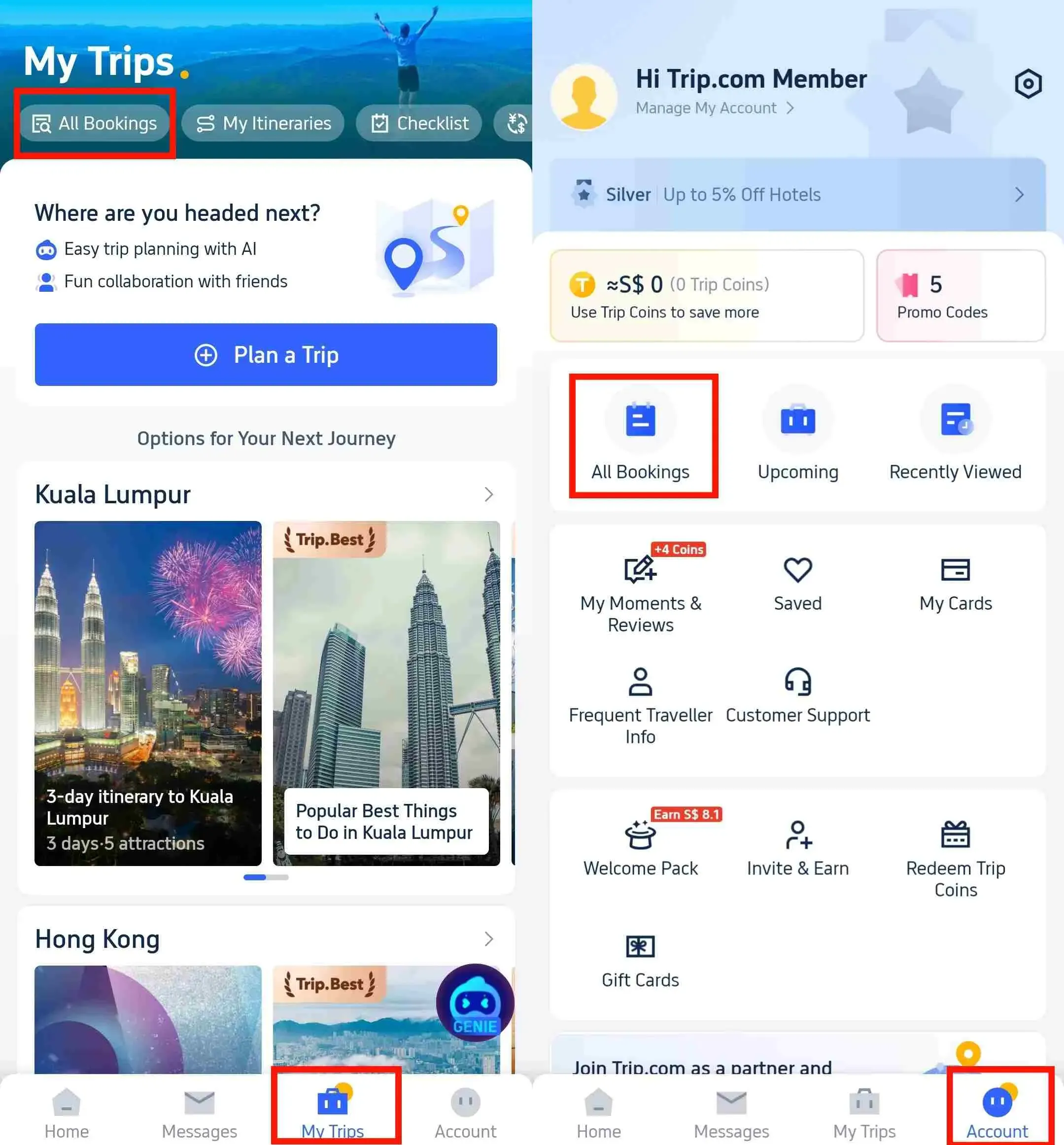
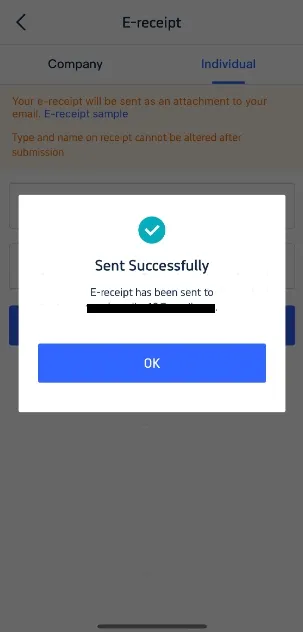
Step 2: Click “E-Receipt” to email the receipt or “Download Receipt” to save it as a PDF for printing or sharing.
Option 3: Via the Trip.com App
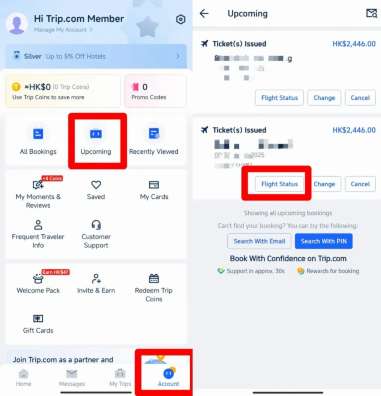
Open the app, head to “Account,” and select your upcoming reservation to view the details.
How Long Does It Take to Get Your Trip.com E-Receipt?
You'll typically receive your Trip.com e-receipt within a few minutes after your booking is confirmed.
If things are taking a bit longer than expected, it might be because your payment is still processing or the airline or hotel hasn't fully confirmed your booking yet.
Don't worry! You can always reach out to Trip.com customer service for help if your e-receipt hasn't arrived or won't generate. Trip.com offers 24/7 phone support for flights and hotels, so help is always just a call away.
How to Book a Flight on Trip.com?
You can book your flight through the Trip.com app or website. Here are the steps:
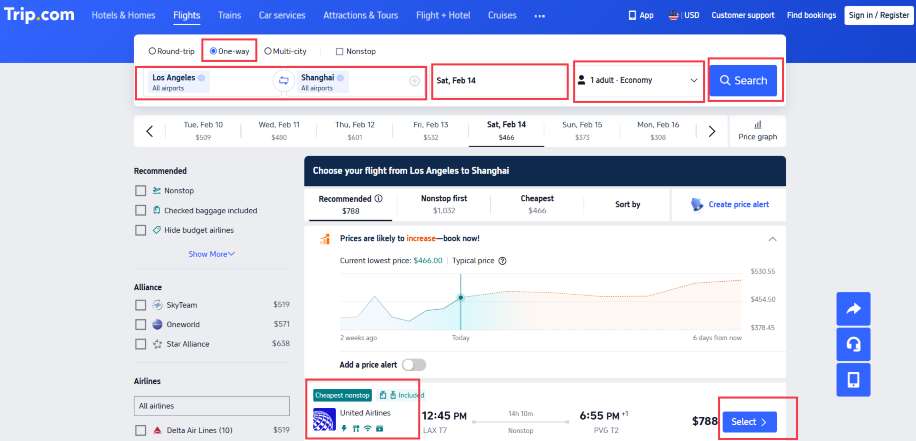
Step 1: Flight Search
- Choose round-trip or one-way, the number of travelers, and your preferred cabin class.
- Then, simply choose your departure city, destination, and travel dates!
- Then, search for flights and pricing plans.
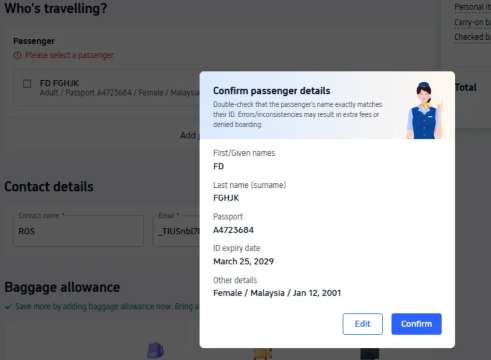
Step 2: Enter and confirm passenger information
- Pick your favorite cabin packages and continue.
- Enter your traveler information on the next screen.
- If you'd like to add a checked baggage allowance, select "Checked Baggage Fees > Add Checked Baggage" and click "Next."
- Once you've entered the traveler information, click "Next" at the bottom of the screen.
- Double-check that your reservation details are correct, and then click "Next" again!
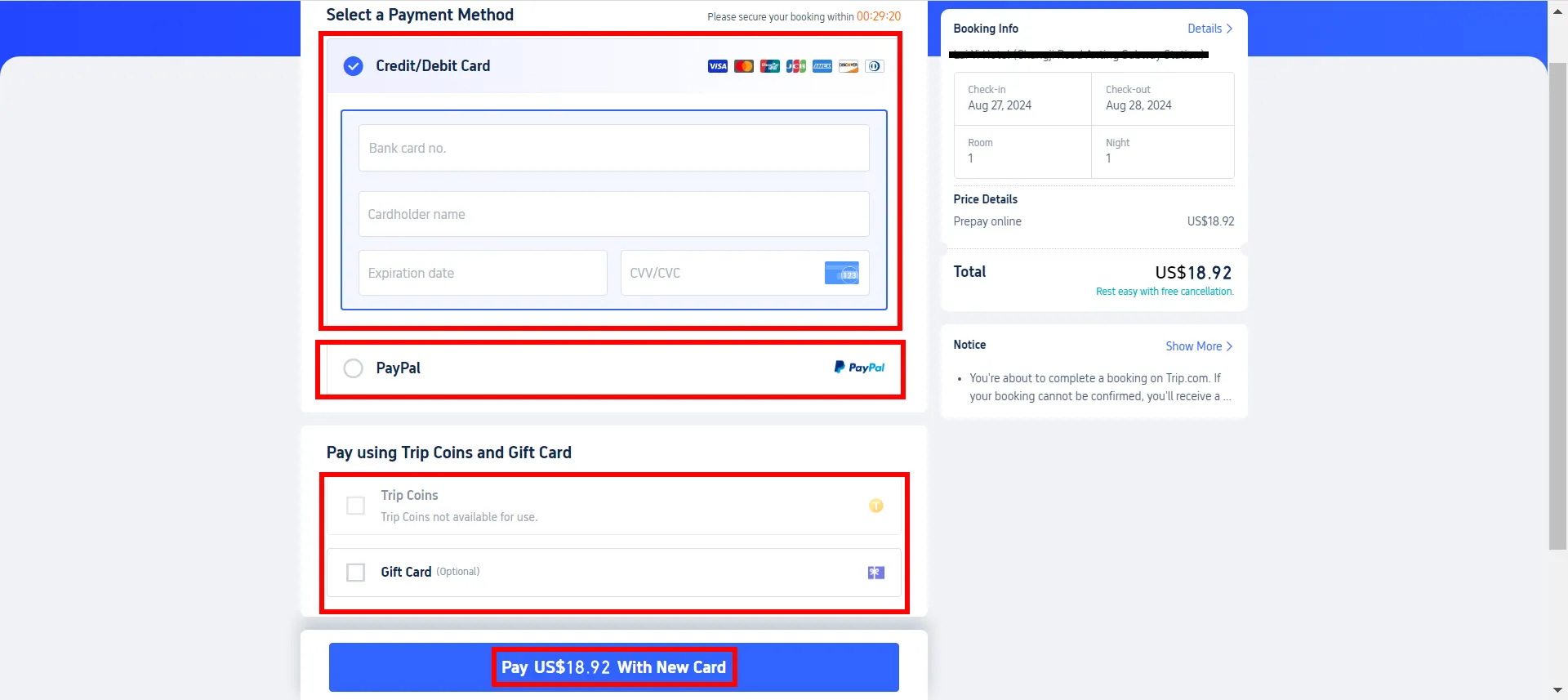
Step 3: Payment
- Click the "Pay" button below to head to the payment screen.
- Just a heads-up: the payment methods available can vary depending on the adventure you're booking.
Step 4: Issuing your flight ticket
Once your ticket has been issued, we'll send an "Airline Ticket Reservation Confirmation" right to your inbox!
Get Connected, Explore More!
See all attractions
 457183 booked


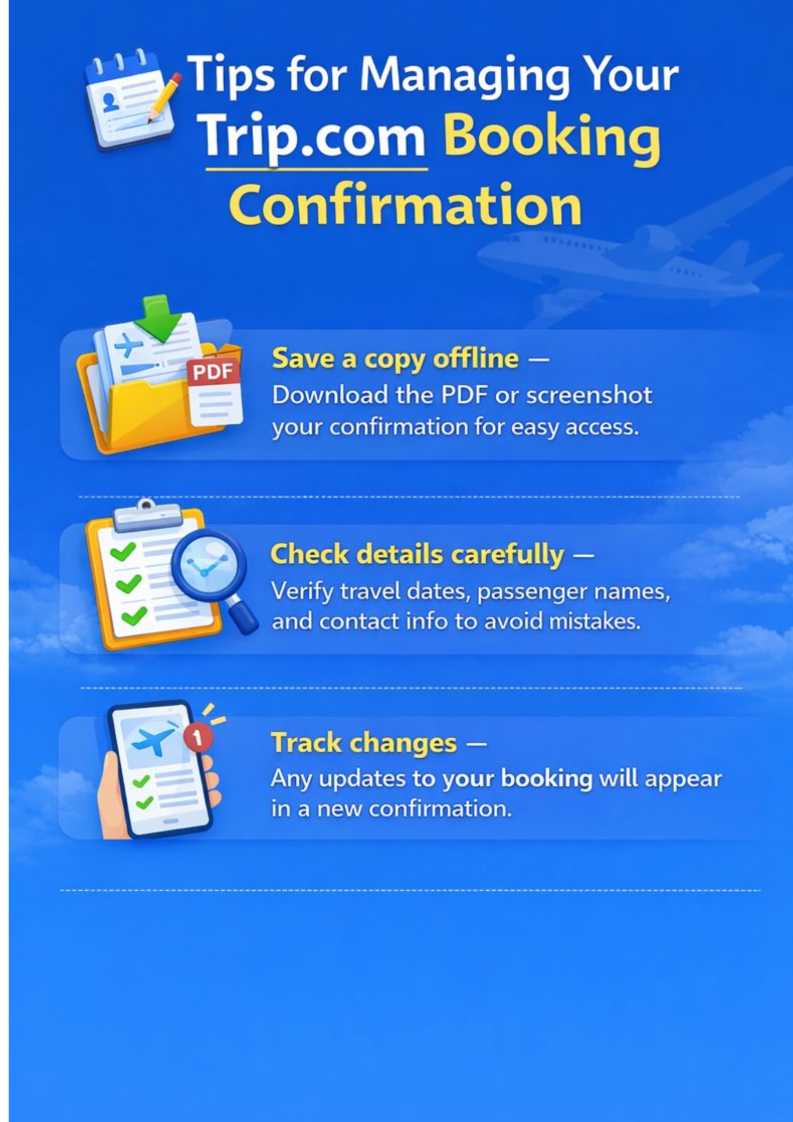
Tips for Managing Your Booking Confirmation
Final Thoughts

JFK Airport in New York City
A Trip.com booking confirmation is more than just a receipt—it’s your travel assurance.
By understanding what’s included and keeping it easy to access, you can travel with confidence, knowing your flights, hotels, and other reservations are secure.
Top Hotels around the World
Shanghai Hotels
Bangkok Hotels
Tokyo Hotels
See All Hotels










FAQ: Trip.com Booking Confirmation
-
What is a Trip.com booking confirmation?
-
How do I receive my booking confirmation?
-
Can I print or save my Trip.com booking confirmation?
-
What should I do if there’s an error in my booking confirmation?
Disclaimer: This article has been provided by an individual contributor or third party platform. If there is any discrepancy regarding the copyright, please contact us directly and we will delete the content immediately.
Find Cheap Travel Deals & Explore Destinations on Trip.com
-
Air travel guide
-
Latest flight deals
-
Getting around
-
eSIM/SIM card
- Canada eSIM
- eSIM
- eSIM Hong Kong
- eSIM Thailand
- China eSIM with VPN
- Cheapest Time to Fly to Japan
- American Airlines Carry-On Size
- Sleeping in Miami Airport
- Vail Ski Resort
- Beijing studio minisite
- Where to Stay in Zhangjiajie
- Oriental Pearl Tower
- New Years Eve
- Hotels near The Bund
- things to do in Seoul